Diwali AI Video Prompt for Google Flow | AI Prompt King
Create a Diwali AI video with your photo in Google Flow. Copy the character replacement prompt, prepare a clean clip and follow the editing steps.
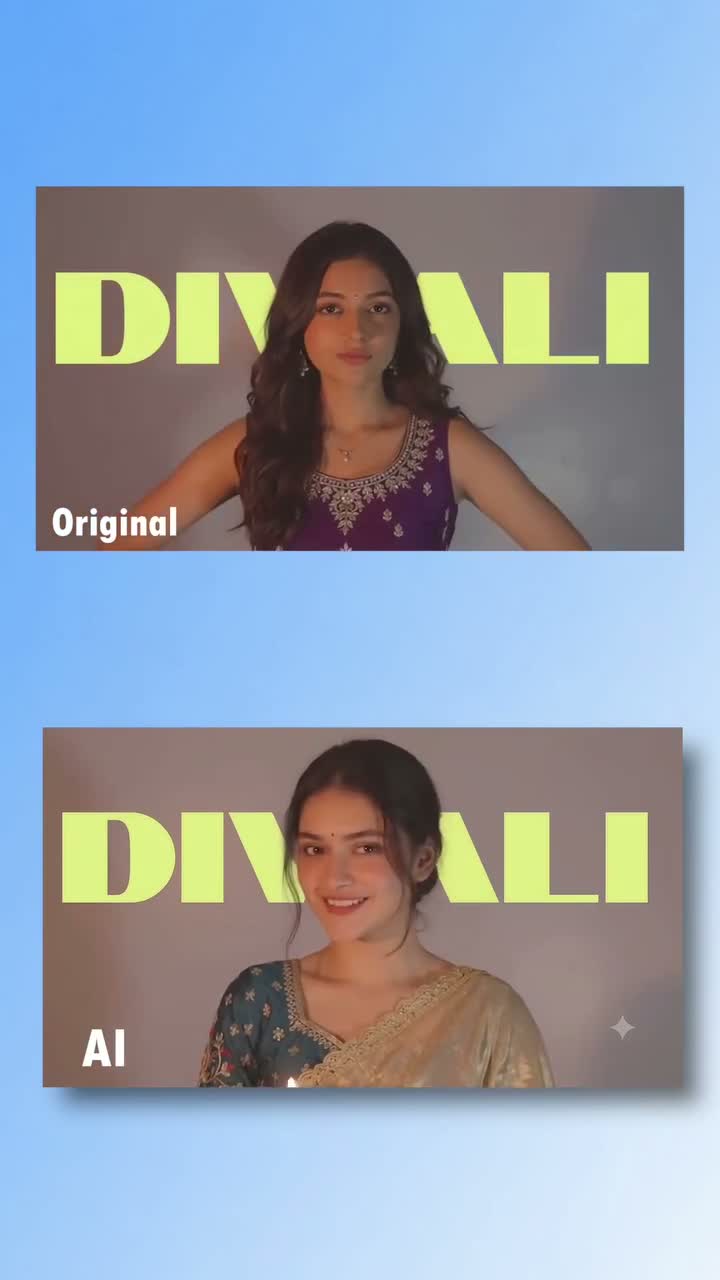
Illustrative cover; not a verified result from this prompt.
Read the full prompt
Edit the attached clean source video into a realistic Diwali portrait video using the attached adult character reference image. INPUT ASSIGNMENT The source video controls the action order, gesture rhythm, facial-expression timing, camera framing, camera movement, background, lighting changes and selected segment duration. The character photo controls the replacement person's facial identity, hair and visible festive outfit. Bind the actual uploaded assets using the interface's reference chips; these descriptions are not literal upload tags. SUBJECT REPLACEMENT Replace only the single main woman in the source shot with the same adult person shown in the character reference. Use one consistent recognizable face from the opening frame through head turns and the final frame. Preserve the supplied person's facial proportions, skin tone, hairline and natural appearance. Transfer the source gestures and expressions naturally to this character, without copying the original woman's facial identity. Use the festive clothing and accessories visible in the character reference and keep them stable throughout. If only a face photo is provided, use a simple coordinated festive sari and blouse, modest gold jewelry and realistic fabric. Do not change outfits mid-shot. Keep plausible adult human proportions and physically coherent hands. ACTION AND SCENE Follow the selected source segment at normal speed. Recreate its gentle diya-holding pose, small free-hand gestures, expression changes and head turns in the same order when those actions occur in the selected segment. Keep the diya supported by a hand; its flame must remain small, stable and separated from skin and fabric. Preserve the source camera framing, dark backdrop and large DIWALI lettering where present. Keep any grayscale-to-color transition at its corresponding source moment rather than inventing a new transition. Preserve realistic skin texture, subtle breathing, blinking, eye direction, contact shadows, warm reflected light and soft fabric motion. Maintain coherent identity through partial profiles. Treat the clip as one person performing, not a collage or a comparison layout. OUTPUT Return only the edited scene at the selected duration and source aspect ratio. Do not add phone frames, original/AI labels, creator handles, watermarks, captions, extra shots or tutorial graphics. Add no new spoken narration, singing or new music. Exact source soundtrack will be handled separately in the final editor. AVOID Face flicker, identity blending, the original woman's face reappearing, duplicate people, extra fingers, fused hands, floating props, changing jewelry, changing outfit, distorted DIWALI lettering, abrupt slow motion, new camera zooms or unrelated scene changes. This prompt guides generation; exact identity, timing, text and audio preservation still require output review.
Create a festive Diwali video with your own character
Use a short Diwali performance clip as a motion reference and a separate photo for the new person's appearance. This guide explains the video-editing setup in Google Flow and supplies a detailed starting prompt. The supplied example contains an Original/AI comparison followed by a mobile Flow demonstration. It is reference material, not a result generated or independently tested for this article.
Prepare the right inputs
Use the clean performance clip, not an entire tutorial or a side-by-side comparison with phone frames and captions. Choose a short section with visible hands and a clear face. The reference includes a diya pose, small gestures, head turns, a DIWALI backdrop and a grayscale-to-color change. Use your own footage or footage you are authorized to use. Add a clear adult portrait, preferably showing the desired festive outfit. A consistent multi-view character image can help describe appearance, but a collage is not a guarantee of identity consistency. A fictional adult character is suitable for a creator-independent demonstration.
Set up Google Flow
Open a Flow project. In the generation settings, choose Video and Omni Flash (shown as Omni 1.1 Flash in the checked account) for the documented uploaded-video editing workflow. Upload the source clip, open it and select the section to edit. Google's current instructions describe an edit selection of up to ten seconds. Add the character photo as a reference ingredient, then paste the prompt. Use the interface's actual attachment chips or selectors to bind the source and the photo. The words source video and character reference in the prompt do not upload files by themselves. Controls and access can vary by account and region.
Copy the Diwali prompt
Copy the prompt below, attach both inputs and tailor only the relevant details. The original clip should define the action; the photo should define the replacement appearance. If your selected segment does not contain a diya or a color transition, remove those lines. If you want the original costume retained, replace the outfit instruction with a clear request to preserve the source clothing.
Generate and review the full clip
Submit the edit and wait for it to complete. Watch the complete output at normal speed. Check the same identity at the beginning, during a head turn and at the end. Inspect hands, the diya grip, the small flame, outfit, jewelry and the DIWALI lettering. Review the grayscale-to-color transition against your selected source segment. Request a focused correction or try a shorter section if one detail drifts. Download the completed result after review; no prompt can guarantee a perfect match.
Keep music separate when an exact match matters
The written prompt does not reproduce a specific recording. Keep an authorized copy of the soundtrack for your final edit and align it to the selected clip. For a tutorial, use a short audible reference preview, then return to your own narration. Label the comparison clearly so viewers can distinguish source material from generated results.
Why is the result changing the background or clothing?
Confirm that the source video and character photo have separate roles in the prompt. Keep the same outfit instruction throughout, remove conflicting descriptions and avoid uploading the whole tutorial layout. A face-only crop supplies little information about clothing; provide a fuller portrait if the outfit is important.
Can I do this in Frames to Video?
This guide is for editing an existing motion reference with Omni Flash. Frames-to-video generation is a different workflow and should not be presented as an exact recreation of an uploaded video's choreography. Check the model and workflow selected before spending a generation.
Official workflow sources
Google Flow Help — Edit videos & build scenes
Google Flow Help — Create videos
Workflow documentation and the live Flow model menu checked on 28 October 2026. The sample is supplied reference footage; a personalized output has not been generated or tested for this guide.