
Flying Car AI Video Prompt: Traffic Lift-Off in Google Flow
Create a Tesla Model 3 flying over Indian traffic with this Google Flow AI prompt. Download the starting image and follow the image-to-video tutorial.
AI-generated edited example. Results vary by generation.
Read the full prompt
Animate the supplied photograph into one continuous realistic 8-second vertical video. Preserve this exact Tesla Model 3 sedan, its pearl-white body, black panoramic roof, flush handles, narrow rear lights, TESLA rear lettering, dark wheels, driver, street, buses, autos, photographic lighting and imperfect real-world textures. The foreground Tesla Model 3 is the only vehicle that flies. It must remain a recognisable Model 3 for the whole shot, never morph into a generic sedan, SUV or futuristic concept vehicle. At the opening it is firmly on the road, matching the supplied starting image. During 0.0-0.5 seconds it creeps a little forward. During 0.5-2.0 seconds its complete rigid body rises smoothly straight up about 4 metres, lifting its wheels clear of the road and then clear of the traffic roofs. Tyres hang naturally on the suspension; nothing transforms. During 2.0-5.0 seconds the Tesla accelerates smoothly AWAY from the camera along the road, above the queue, passing clearly over the cars and then above the red city bus with comfortable roof clearance. By 5 seconds it is farther down the street and visibly smaller through real perspective. Continue forward through 8 seconds. The camera remains near its original roadside position and gently tilts to follow; no orbit, cut, dramatic zoom or slow motion. Reveal the entire Tesla as it lifts and recedes. Every other car, auto and bus stays on the ground and inches forward naturally. Maintain coherent occlusion, perspective, car body shape, natural reflections and sunlight; its soft shadow separates from the tyres during lift and moves along the traffic below. Retain the same fictional adult woman naturally seated at the wheel, no closeups. This is a photographic live-action VFX shot: only the flight is impossible. No swaying, bouncing, toy-car scale, plastic rendering, glow, flames, thrusters, wings, morphing wheels, stretching, multiplying cars or dissolving traffic. No exhaust pipes on the electric car. No captions, overlays or black bars. Audio: subdued natural street ambience, distant horns and a very quiet electric-motor hum; no speech, music or dramatic swoosh.
Tesla Model 3 flying-car AI video prompt
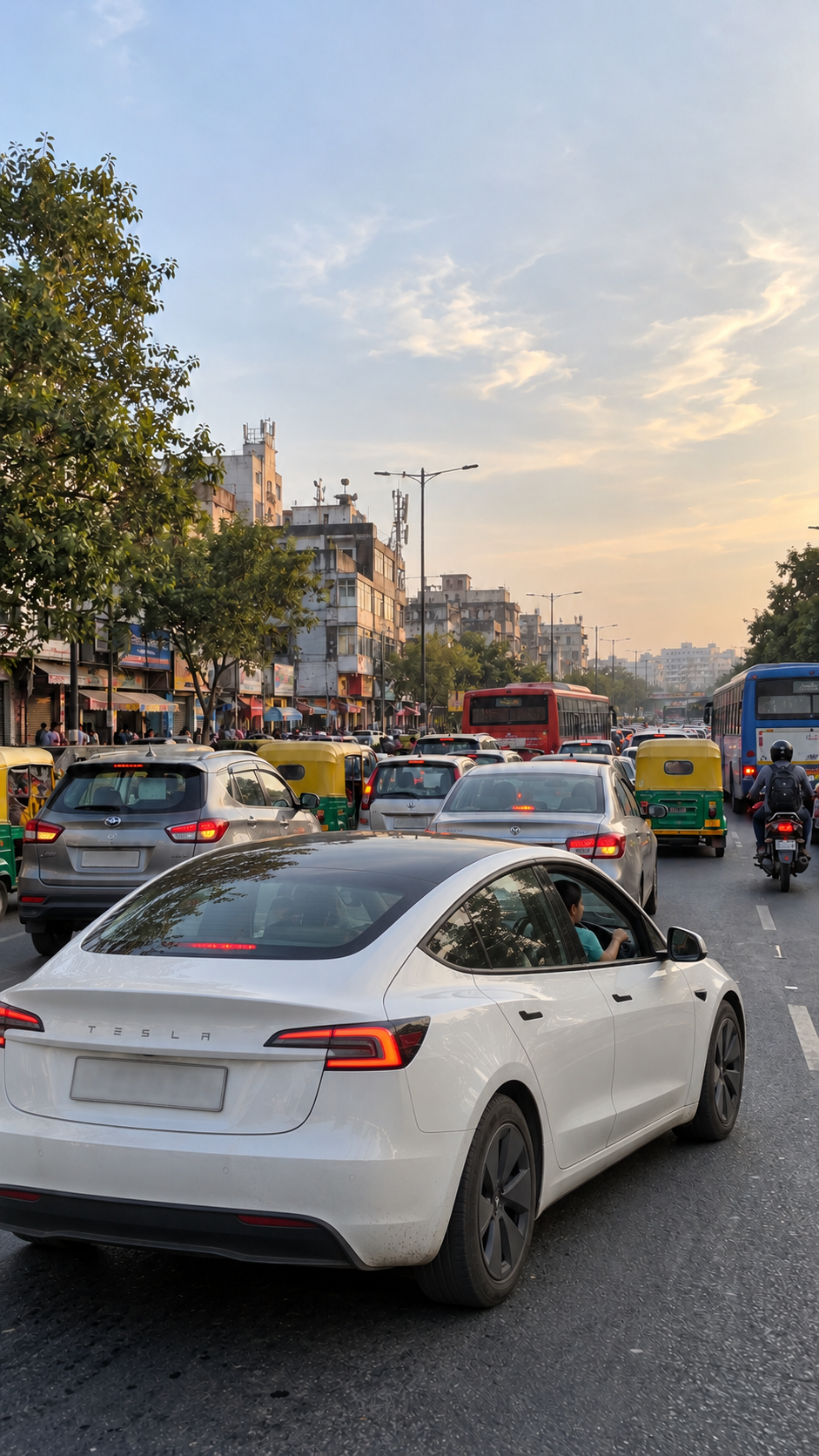
A convincing flying-car effect starts with a coherent street, car and camera view. This version uses a generated photograph of a pearl-white Tesla Model 3 stopped in Indian traffic, then animates that image in Google Flow. The queue includes varied cars, green-and-yellow auto-rickshaws and full-size buses. Only the hero car leaves the road. The vehicle choice for this version is Model 3, not Model Y or Cybertruck. Preserve its recognizable body shape during the entire animation.
This is an AI-generated visual effect, not footage of a real flying vehicle or an official Tesla advertisement. The vehicle design reference is the official Tesla Model 3 page; the flight is fictional. The woman in the driver's seat is fictional. The workflow does not use the original social-media creator's face or voice.
What you need
Use the supplied starting frame, the motion prompt on this page and access to a video model that accepts a starting image. Our example uses Google Flow in Frames mode, portrait 9:16, one output and an eight-second source video. Controls, available models and credit costs may differ between accounts.
Download the original AI starting frame. This is the image used for the demonstration. Keep it in portrait orientation and avoid cropping the foreground car further.
Step 1: Prepare a grounded starting image
The first image matters. The car should have normal tyres touching the asphalt, realistic weight, a coherent shadow, ordinary window reflections and traffic that fits the street. A car already floating above a bus gives the model no clear ground-to-air transition.
You can use the supplied frame or generate a different original scene with the optional image prompt below. Choose a fictional adult driver or an image you are authorised to use. Keep the driver naturally seated, with no separate glamour close-up.
Optional starting-image prompt
Create a photographic vertical 9:16 view of a pearl-white refreshed Tesla Model 3 sedan stopped on the asphalt in a busy Indian traffic jam. Keep the recognizable low sedan proportions, sloping black glass roof, black flush handles, narrow C-shaped rear lights, spaced TESLA rear lettering, dark aerodynamic wheels and clean bumper without exhaust pipes. Show it from a rear-right three-quarter roadside viewpoint, with ordinary tyres firmly touching the road and realistic contact shadows. A fictional adult Indian woman in a muted teal shirt sits at the wheel, visible naturally through the front side window. Ahead are many different cars, several green-and-yellow auto-rickshaws and two full-size city buses, with believable gaps and perspective. Include worn road surfaces, slightly dusty paint, natural glass reflections, street trees and ordinary low-rise buildings. Use soft natural daylight and restrained colour. Leave space above and ahead of the sedan for its later lift and forward movement. No airborne car yet, no wings, flames, neon lights, added text, beauty-filter skin, game-render look or black bars.
Inspect the generated still before animating. An image that looks like a toy car or an advertisement render is unlikely to turn into convincing everyday footage just by adding motion.
Step 2: Add the picture as the Start frame
Open your Google Flow project. Select Video and Frames, then use Start to upload the starting picture. Wait until the image is ready and choose Add to prompt. Make sure the selected image is the grounded traffic scene.
Use the Copy prompt button on this page for the motion prompt. Paste it alongside the starting frame. The image establishes the car, street, lighting and camera; the text describes how that existing scene should move. Pasting only the motion text without an image is a different workflow and can produce a different result.
Step 3: Choose portrait output and generate
Select 9:16 and one output. The source for this demonstration is eight seconds long. Review the model and credit cost shown in your own interface before pressing Generate. A higher-cost option does not guarantee a perfect result.
The motion prompt asks for a short grounded opening, a smooth lift and forward travel above the queue. It keeps the camera roadside and lets the vehicle become smaller as it moves away. This avoids an artificial-looking car remaining fixed in front of a sliding background.
Step 4: Review the actual movement
Watch the complete clip before editing. Confirm that the hero car begins on the road, lifts with one stable body shape and moves ahead over traffic. Its wheels, doors and windows should not transform. Cars, buses and autos below should remain grounded.
Look at the street as well. Traffic should have coherent scale, lane spacing and occlusion. The flying car should clear roofs instead of intersecting them. Its shadow and glass reflections should remain plausible as its position changes.
A prompt describes the desired action; it does not guarantee exact timing, a perfect driver face or physically consistent geometry. If the first generation has a specific defect, change that part of the instructions or choose another generation. Keep the original file so you can compare results.
Step 5: Make the short tutorial
Use a clear four-to-five-second excerpt of the car scene. Our edit keeps the established light background, phone frame and readable Hindi captions. The car visual is a quick opening hook, followed by the creator's own follow, like, comment and share animation.
The Instagram profile is @rahulgaur3d. AI Prompt King is the website brand, and aipromptking.in is where viewers find the prompt. Keep the profile handle and website name distinct in your edit.
Show the prompt page, Copy prompt action and the Flow composer with its starting frame. Add your own narration rather than copying the reference creator's voice. Keep sound effects subtle; repeated swooshes and flashing transitions can distract from the instructions.
Step 6: Download and export
Download the generated source from Flow, select the clearest short sequence and export your tutorial in portrait format. A cover taken from the same generated shot helps the thumbnail match the video. Label the scene as AI-generated or an AI concept.
Preserve the image, motion prompt, full generation and editable project. The short preview on this page is an edited AI example, not a promise that another generation will match the same traffic, timing or car geometry.
Frequently asked questions
Does this prompt need a starting image?
Yes. The main prompt is written for the photograph-to-video method. Download the example frame above or prepare an original image before using it in Frames mode.
Is the driver a real creator?
No. The example driver is fictional and AI-generated. There is no need to upload another creator's portrait.
Why generate eight seconds for a short opening?
The longer source provides editing room. Keep approximately four to five seconds that show the lift and forward movement clearly.
Will every run look exactly the same?
No. Video generation can vary even with the same image and prompt. Inspect traffic geometry, roof clearance and the car's movement each time.
Can I change the vehicle or location?
Yes. Change the starting image first, then update the motion prompt so the car description and traffic objects match it. Contradictory image and text instructions can reduce consistency.
For a different effect, try the UNO card car-reveal prompt.