Blur-to-Clear Portrait Reveal: Manual Video Edit
Create a blur-to-clear portrait reveal with an adjustable beat cue and a short decorative progress animation.
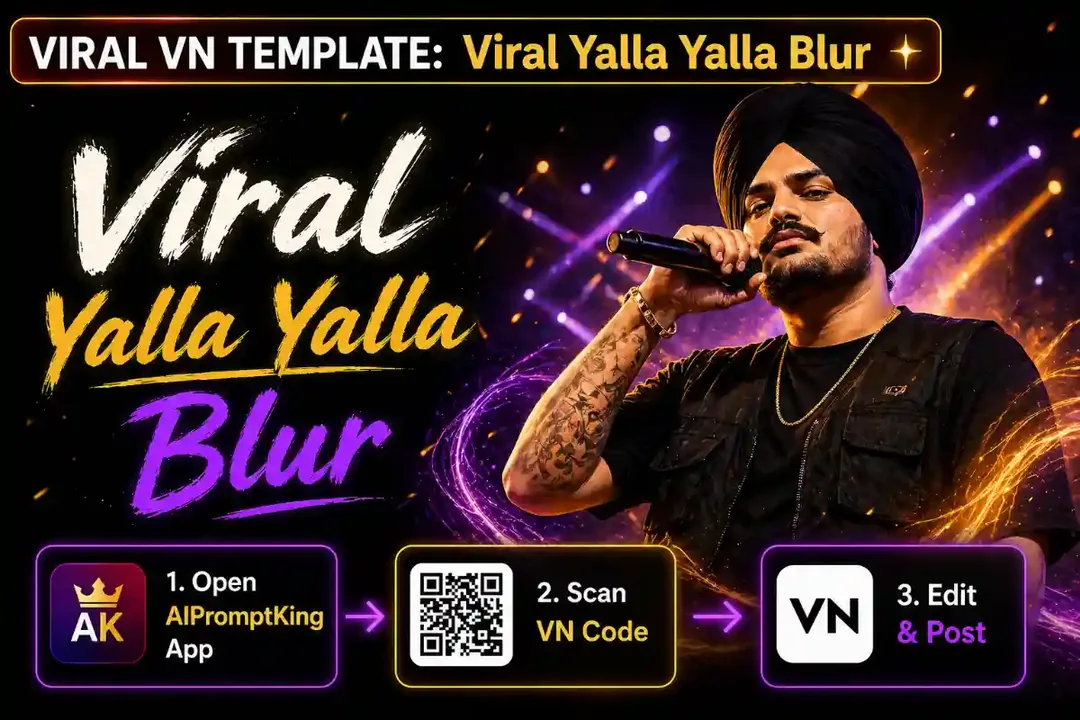
Illustrative cover; not a verified result from this prompt.
Read the full prompt
BLUR-TO-CLEAR PORTRAIT — MANUAL EDITING BRIEF Use one sharp authorized portrait twice on the timeline with the same crop and position. Blur the first copy. Keep any decorative progress graphic brief and visibly part of the video, then remove the blur at a clear cue in music you are allowed to publish. End on the unchanged sharp portrait long enough to recognize the face. Match framing across the cut so the image does not jump. This effect reveals the sharp version of your existing photo; it does not increase its detail or resolution. No particular song, VN template, QR code or audio download is required or supplied.
Start with the final portrait
Choose a sharp photo you may publish. Duplicate it on the editing timeline so the blurred opening and clear reveal use the same framing. This page provides an edit brief, not a VN template code or a music download.
Control the reveal point
Blur the opening copy, then remove the blur at a clear musical beat or spoken cue. A short progress animation can introduce the reveal, but it should be visibly part of the video rather than a fake website loading control. Keep the opening brief so viewers reach the portrait quickly.
Check the transition
Make sure the face stays in the same position when the blur disappears. If the effect jumps, match the crop and scale on both clips. Use licensed audio of your choice; the visual does not require the song named in the original trend.